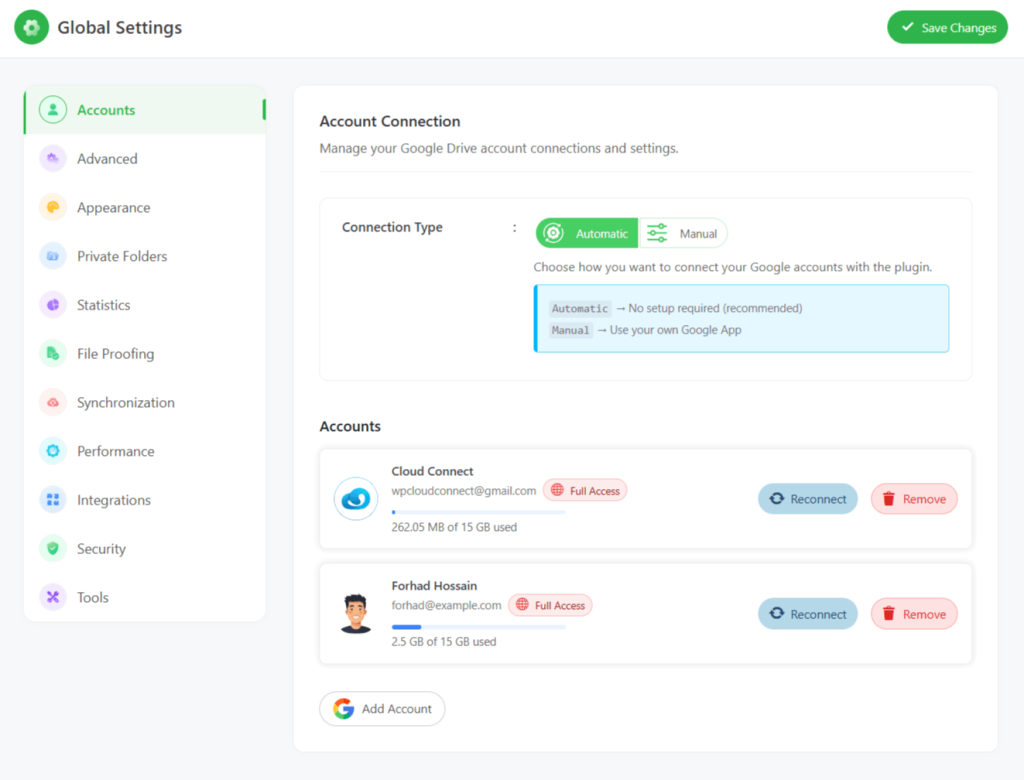
To start enjoying the full features of the Connect Drive plugin, you must connect your Google Account. Follow the guidelines below to learn the different ways to connect your Google account.
There are two methods to connect your Google account from the Connect Drive account page:
-
Automatic: Sign in with your Google account using the plugin’s default Google App. No configuration is required.
-
Manual: Create your own Google App and use it to connect your Google account with the plugin.
Automatic Process
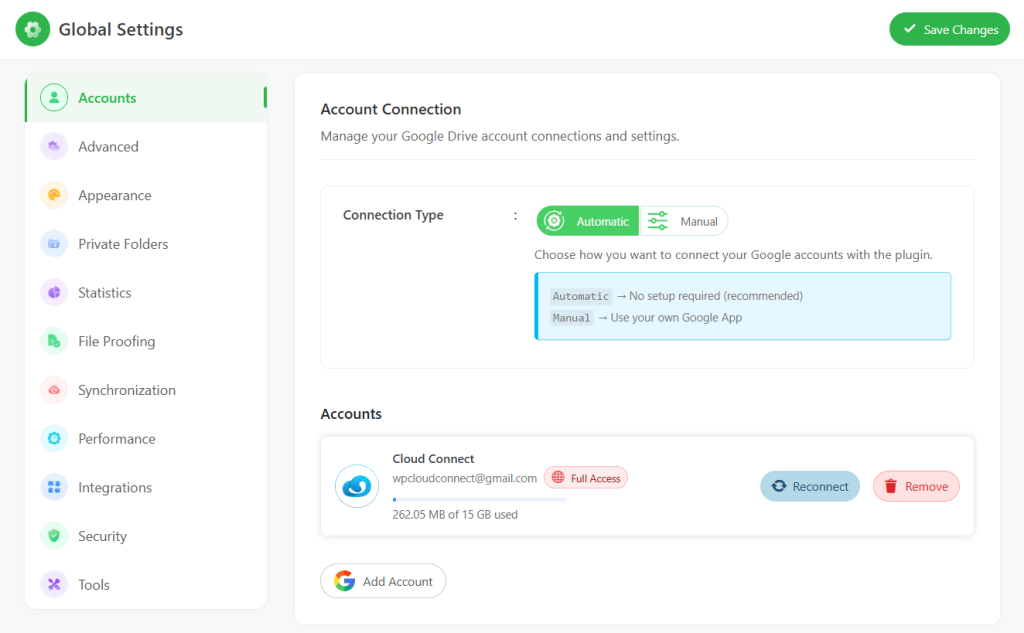
To automatically connect your Google account by using the plugin’s default app, follow the steps below:
- Navigate to Google Drive > Settings > Accounts.
- Select “Automatic” from the connection type.
- Click the “Add Account” button.
- Choose “Access Type” (Application Folder, Specific Folder, or Entire Drive).
- Click the “Continue with Google” button.
- Choose the preferred account to add.
- Allow the additional access it requests.
Manual Process
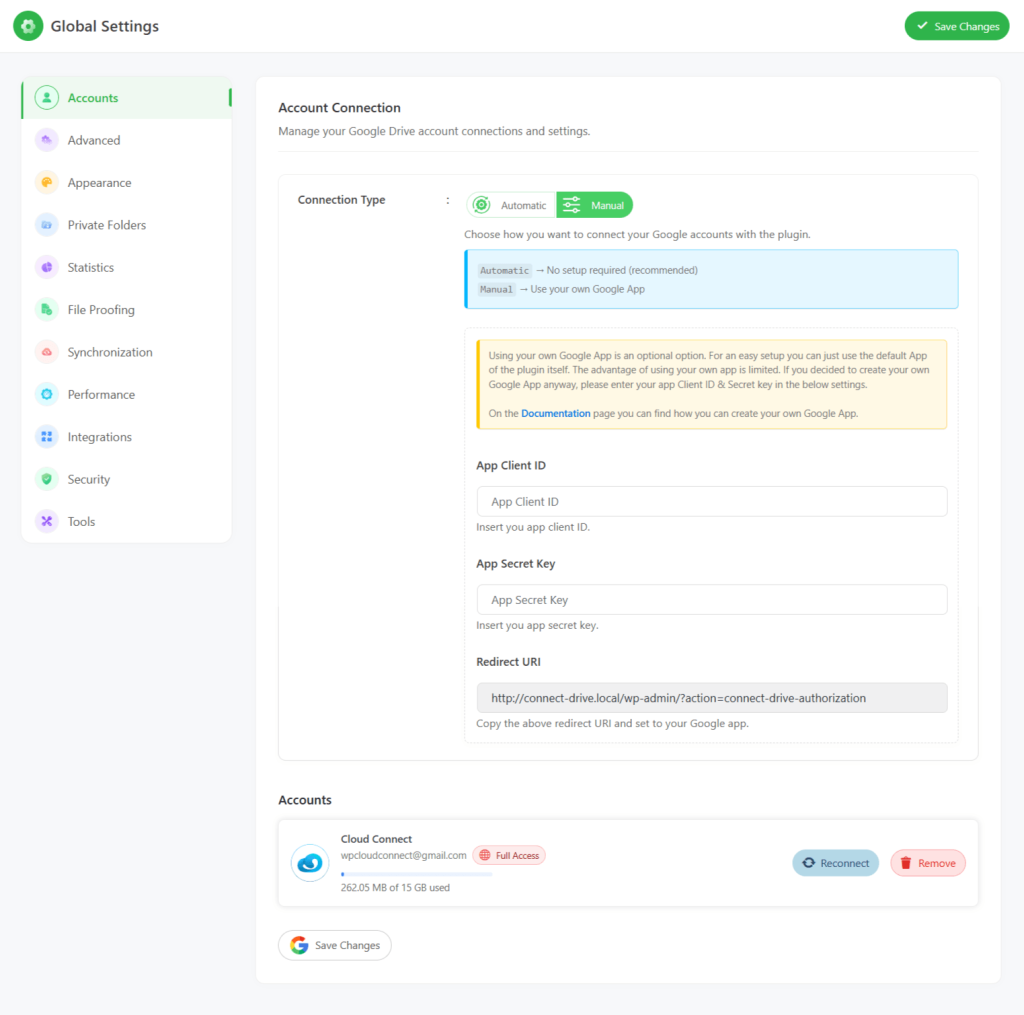
You can create your own Google App and use it to connect your Google account through the plugin. If you already have an app, follow the steps to add credentials. If not, follow this documentation to create your own Google app.
Note: Using your own Google App is an optional option. For an easy setup, you can just use the default App of the plugin itself. The advantage of using your own app is limited. If you decided to create your own Google App anyway, please enter your app Client ID & Secret key in the input boxes.
To manually connect your Google account, navigate to the following steps:
- Navigate to Google Drive > Settings > Accounts.
- Select “Manual” from the connection type.
- Enter the App Client ID, App Secret Key, and other required information.
- Click the “Add Account” button.
- Choose “Access Type” (Application Folder, Specific Folder, or Entire Drive).
- Click the “Continue with Google” button.
- Choose the preferred account to add.
- Allow the additional access it requests.
How to Connect Multiple Google Accounts?
Connect Drive Premium version allows adding multiple Google accounts. To add multiple Google accounts, follow the steps below:
- Navigate to Google Drive > Settings > Accounts.
- Click the “Add Account” button.
- Choose “Access Type” (Application Folder, Specific Folder, or Entire Drive).
- Click the “Continue with Google” button.
- Choose the preferred account to add.
- Allow the additional access it requests.