
You can easily display Google Drive modules in WordPress using several methods provided by the Connect Drive plugin. Whether you are using shortcodes, Classic Editor, Gutenberg, Elementor, or Divi, the plugin offers flexible integration options to fit your workflow.
In this documentation, we’ll cover various approaches to adding a Google Drive module to a WordPress website.
Display Google Drive Modules Using Shortcode
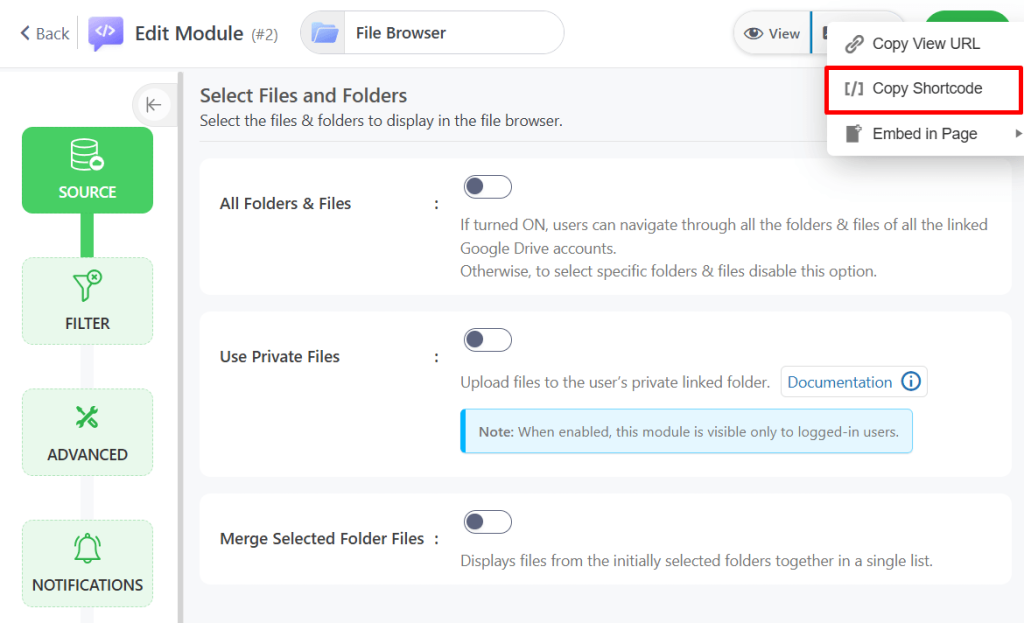
A straightforward way to insert a Google Drive Module using a simple code snippet. Follow the steps below to display any Google Drive Module using the shortcode:
- Navigate to Google Drive > Module Builder in your WordPress dashboard.
- Locate the desired module and copy its Shortcode.
- Go to any page or post where you want to display the Google Drive Module.
- Paste the Shortcode into the content area of the page or post.
Display Google Drive Modules Using Classic Editor Widget
Connect Drive plugin offers a Classic Editor Widget that allows you to easily display any created Google Drive Module directly within the WordPress Classic Editor. Follow the steps below to display Google Drive using the Classic Editor Widget:
- Navigate to the page or post (using Classic Editor) where you want to add the Google Drive Module.
- Click on the Google Drive button.
- Select the desired module from the available options to display.
- If there are no modules created, click on the Add New Module button to add a new module.
Display Google Drive Modules Using Gutenberg Block
Connect Drive plugin offers a Gutenberg Block that allows you to easily display any created Google Drive Module directly within the WordPress block editor. Follow the steps below to display Google Drive using the Gutenberg Block:
- Navigate to the page or post (using Gutenberg) where you want to add the Google Drive Module.
- Add a New Block.
- Search for Google Drive and select it to insert.
- Select the desired module from the available options to display.
- If there are no modules created, click on the Add New Module button to add a new module.
Display Google Drive Modules Using Elementor Widget
Connect Drive plugin offers an Elementor widget that allows you to easily display any created Google Drive Module directly within the WordPress Elementor editor. Follow the steps below to display Google Drive using the Elementor widget:
- Navigate to the page or post (using Elementor) where you want to add the Google Drive Module.
- Add a New Widget.
- Search for Google Drive and select it to insert.
- Select the desired module from the available options to display.
- If there are no modules created, click on the Add New Module button to add a new module.
Display Google Drive Modules Using Divi
Connect Drive plugin offers a Divi widget that allows you to easily display any created Google Drive Module directly within the WordPress Divi editor. Follow the steps below to display Google Drive using the Divi widget:
- Navigate to the page or post (using Divi) where you want to add the Google Drive Module.
- Add a New Widget.
- Search for Google Drive and select it to insert.
- Select the desired module from the available options to display.
- If there are no modules created, click on the Add New Module button to add a new module.